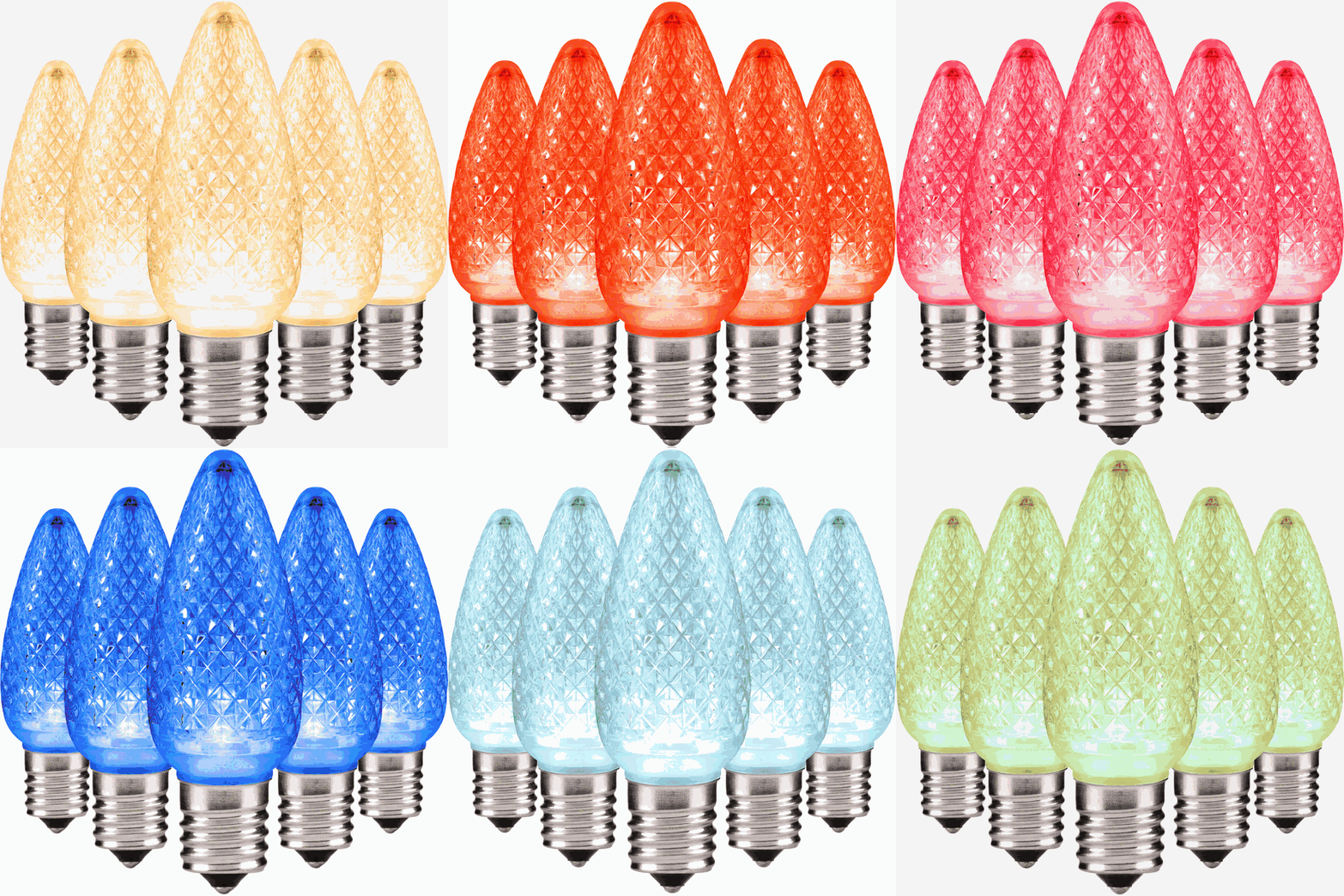
Choose your RGB bulb quantity and stringer configuration. We’ll calculate the stringers and controller bundles needed to complete the system.
A controller bundle is required
RGB bulbs will not operate without the RGB Controller Bundle. Each bundle supports up to 300 feet of lights.
Product information
Details and specifications
Bring full-color flexibility to Christmas light installations with HLO RGB LED bulbs. Use the interactive color wheel to preview the color spectrum, review the available product options, and build a coordinated lighting system with compatible RGB controllers and accessories.
App controlled
Control your RGB lighting with Surplife
Use the Surplife app to connect a compatible HLO RGB controller and access color, brightness, supported scenes, timers, groups, music synchronization, and remote control. Available features can vary by controller and firmware.
Color controlChoose colors and adjust brightness from your phone.
Scenes and effectsUse supported preset or custom lighting effects.
TimersSchedule supported devices to turn on, change, or turn off.
Bluetooth app controlConnect directly to the nearby HLO RGB controller—no Wi‑Fi network is required.
Install and connect
Complete the lighting connections with power off. Connect the RGB bulbs, compatible socket stringer, controller, adapter, and power supply according to the HLO Controller Bundle instructions. Apply power and use those instructions to put the controller into pairing mode.
Install Surplife. Use the Apple App Store or Google Play button above, then create or sign in to your Surplife account.
Prepare the phone. Turn on Bluetooth and allow the app’s requested Bluetooth or Nearby Devices permissions. Some phones may also request location permission to discover nearby Bluetooth devices. A Wi‑Fi network is not required.
Keep the phone close during setup. Place the phone near the powered controller for initial Bluetooth pairing.
Add the controller. From the Surplife home screen, tap Add Device or the + button. Select the discovered device.
Connect and name it. Wait for the Bluetooth connection to finish, name the device, choose a room if offered, and tap Finish.
Simple operation
Tap the device tile on the Surplife home screen.
Use the color and brightness controls for a static look.
Choose a supported scene or effect for animated color changes.
Use timers, groups, or music synchronization when those features are supported by the connected controller and firmware. Keep the phone within Bluetooth range when direct control is required.
If automatic discovery fails
Confirm the controller is powered and is in the pairing mode described in the HLO Controller Bundle instructions.
Make sure Bluetooth is on and Surplife has permission to find nearby devices.
Move the phone within a few feet of the controller, then refresh the device list.
If needed, close and reopen Surplife, toggle Bluetooth off and back on, and tap Add Device again.
Connection checks
Confirm the controller is powered and Bluetooth is enabled.
Move the phone closer to the controller, then refresh the device list.
Restart the controller or app if the device remains unavailable.
Reset procedures vary by controller. Use the instructions supplied with the HLO Controller Bundle or contact cs@hlolighting.com before repeatedly power-cycling the system.
Important: The RGB bulbs require the compatible HLO RGB Controller Bundle. The app communicates with the controller; the bulbs do not connect directly to the phone.
Which app controls the HLO RGB system?
Use the Surplife app linked above. The Android store URL contains the legacy package name “magichome2,” but the current Google Play listing is named Surplife.
Why does the app ask for Bluetooth and location access?
Surplife uses Bluetooth to discover and control the nearby HLO RGB controller. Some phone operating systems require location or Nearby Devices permission for Bluetooth scanning. The HLO RGB system does not require a Wi‑Fi connection.
Are HLO RGB bulbs Wi‑Fi compatible?
No. The required HLO RGB Controller Bundle communicates with the Surplife app by Bluetooth and controls the bulbs through the connected lighting system. The bulbs are not Wi‑Fi devices and do not connect directly to a phone.
What if Surplife cannot find the controller?
Keep the controller powered and in pairing mode, enable Bluetooth, confirm Surplife has permission to find nearby devices, move the phone closer, and try Add Device again.
See every color
Explore the full RGB spectrum
Choose any point on the color wheel to preview the bulb in real time.
The interactive preview could not load. The product image and purchasing options are still available above.
Choose a color
Click or drag anywhere on the wheel. Move toward the center for a softer tint.
Click or drag on the wheel. With the wheel focused, use left and right arrow keys to change hue and up and down arrow keys to change saturation.
Color preview: Screen settings, controller effects, and the installation environment can affect the final appearance.